
| Shortcut | Command | How useful(?) | |||
| ALT+1 | Go to previous folder; use within the File Open or Insert File dialog boxes. | + – | |||
| ALT+2 | Open the folder one level up from the open folder (Up One Level button); use within the File Open and Insert File dialog boxes. | + – | |||
| ALT+3 | Close the open dialog box and opens your World Wide Web search page (Search the Web button); use when working in the File Open or Insert File dialog boxes. | + – | |||
| ALT+4 | Delete the selected folder or file; use within the File Open or Insert File dialog boxes. | + – | |||
| ALT+5 | Create a new subfolder in the open folder; use within the File Open or Insert File dialog boxes. | + – | |||
| ALT+6 | Switch between List, Details, Properties, and Preview views (click the arrow next to Views); use within the File Open or Insert File dialog boxes. | + – | |||
| ALT+7 | Display the Tools menu; use within the File Open or Insert File dialog boxes. | + – | |||
| CTRL+SHFT+S | Post an selected item into a specified folder. | + – | |||
| CTRL+SHFT+G | Flag an item for needing a follow up. | + – | |||
| CTRL+SHFT+H | Create new Office document when working in Outlook. | + – | |||
| CTRL+SHFT+L | Create a Distribution list item or folder when working in Outlook. | + – | |||
| CTRL+SHFT+O | Convert an HTML or RTF message to plain text when working in Outlook. | + – | |||
| F11 | Enter a name in the Quick Find box. | + – | |||
| CTRL+, (comma) | Go to previous item (with item open) when working within Outlook. | + – | |||
| CTRL+. (period) | Go to next item (with item open) when working within Outlook. | + – | |||
| CTRL+B | Open Background Synchronization when working with Menu commands. | + – | |||
| ALT | Close the visible menu and submenu at the same time; works with menu commands. | + – | |||
| ALT+0 (ZERO) | View 10 days; works when using general keys for moving around in the day/week/month/view. | + – | |||
| ALT+1 | View 1 day; works when using general keys for moving around in the day/week/month/view. | + – | |||
| CTRL+SHFT+Q | Keys to create a new meeting request or open an existing meeting request. | + – | |||
| CTRL+SHFT+R | Reply All to an E-Mail. | + – | |||
| CTRL+SHFT+RIGHT ARROW | Select or unselect one word to the right of the cursor. | + – | |||
| CTRL+SHFT+T | Reduce the size of a hanging indent formatted on onto a selected block of text. | + – | |||
| CTRL+SHFT+TAB | Go to the previous tab when working in a tabbed dialog box. | + – | |||
| CTRL+SHFT+TAB or CTRL+PAGE UP | Go to the previous tab when working in a tabbed dialog box. | + – | |||
| CTRL+SHFT+U | Create a new Task request or open an existing Task report in Outlook. | + – | |||
| CTRL+SHFT+UP ARROW | Extend the selection to the previous card, regardless of the starting point. | + – | |||
| CTRL+SHFT+V | Paste an item from one place to another. | + – | |||
| ALT+C | Close Print Preview; use within menu commands. | + – | |||
| ALT+D | Decline when responding to an E-Mail schedule request; use within menu commands. | + – | |||
| ALT+DOWN ARROW | Go to the same day in the next week; works with general keys for moving around in day/week/month view. | + – | |||
| ALT+DOWN ARROW | Move selected item to the same day in the next week; works with general keys for moving around in day/week/month view. | + – | |||
| ALT+DOWN ARROW | Display more Help topics; works when using Office Assistant. | + – | |||
| ALT+DOWN ARROW | Go to the same day in the next week; works with general keys for moving around in day/week/month view. | + – | |||
| ALT+DOWN ARROW | Open a selected drop-down menu; works within a dialog box. | + – | |||
| ALT+END | Go to the last day of the current week; use within the Date Navigator. | + – | |||
| ALT+EQUAL SIGN | Switch to month view when using general keys for moving around in day/week/month view. | + – | |||
| ALT+F4 | Close a selected window while working in Outlook; if you have only one open window, close Outlook. | + – | |||
| ALT+F6; repeat until the balloon is active | Activate Office Assistant while working in a document. | + – | |||
| ALT+HOME | Go to the first day of the current week when using general keys for moving around in day/week/month view. | + – | |||
| ALT+HYPHEN SIGN | Switch to week view when using general keys for moving around in day/week/month view. | + – | |||
| ALT+I to select the Folder List; arrow keys to select a folder | Select the folder list in Save As dialog box (in the File menu); use arrow keys to select a folder. | + – | |||
| ALT+K | Display the Task menu while working in Outlook. | + – | |||
| ALT+key for number of days | View anywhere from 2 through 9 days at a time; works when using general keys for moving around in day/week/month view. | + – | |||
| ALT+LEFT ARROW | Move a selected item to the previous day when multiple days appear; use when working with general keys for moving around in day/week/month view. | + – | |||
| ALT+letter key, where the key is the underlined letter in a menu cmnd | Select a menu, or select or clear the check box by the letter underlined in the menu name in a dialog box. | + – | |||
| ALT+number (where hitting key for 1 selects the leftmost optn, 2 the next, and so on) | Select a Help topic while using Office Assistant. | + – | |||
| ALT+number (where hitting key for 1 selects the leftmost optn, 2 the next, and so on) | Select an option in the Save As dialog box (in the File menu). | + – | |||
| ALT+O | Display the Format menu. | + – | |||
| ALT+P | Print from Print Preview window. | + – | |||
| ALT+PAGE DOWN | Go to the last day of the month when using general keys for moving around in day/week/month view. | + – | |||
| ALT+PAGE UP | Go to the first day of the month when using general keys to move around in day/week/month view. | + – | |||
| ALT+PRTSCR | Copy the active window to the Windows Clipboard. | + – | |||
| ALT+RIGHT ARROW | Move a selected item from one to the next day when multiple days appear; use when working with general keys for moving around in day/week/month view. | + – | |||
| ALT+S | Save, close and Send when working with E-Mail. | + – | |||
| ALT+S, ALT+U | Print Preview current page. | + – | |||
| ALT+SHFT+TAB | Move from active application window to previously active application window. | + – | |||
| ALT+SPACE | Display the active window's title bar menu. | + – | |||
| ALT+SPACEBAR | Open the menu of the leftmost icon on the main toolbar bar of the active window; this menu typically contains the following commands: Restore, Move, Size, Minimize, Maximize and Close. | + – | |||
| ALT+TAB | Move from active application window to the previously used application window; to select an application from a list of the open applications, hold ALT down and press TAB more than once to move through the list. | + – | |||
| ALT+letter key, where the key is the underlined letter in a menu cmnd | Select a menu, or select or clear the check box by the letter underlined in the menu name. | + – | |||
| ALT+UP ARROW | Go to the same day in the previous week when using general keys for moving around in day/week/month view. | + – | |||
| ALT+UP ARROW | Move selected item to the same day in the previous week when using general keys for moving around in day/week/month view. | + – | |||
| ALT+UP ARROW | Display previously viewed Help topics while using Office Assistant. | + – | |||
| ALT+UP ARROW | Go to the same day in the previous week when using general keys for moving around in day/week/month view. | + – | |||
| ALT+UP ARROW or ESC (when a drop-down list box is selected) | Close a drop-down list box while working in a dialog box. | + – | |||
| ALT+UP, DOWN, LEFT, or RIGHT ARROW | Move a selected appointment up, down, left, or right when using general keys for moving around in day/week/month view. | + – | |||
| ALT+Z | Zoom in on an area of detail while working in Print Preview. | + – | |||
| ARROW KEY | Move between options in a selected drop-down menu or dialog box or between some options in a group of options. | + – | |||
| ARROW KEY | Move between options in a selected drop-down menu or dialog box or between some options in a group of options; add ENTER to select an option. | + – | |||
| CRTL+U | Underline the following text or to underline a selected section of text. | + – | |||
| CTRL+ SHFT+S | Post selected item to a designated folder. | + – | |||
| CTRL+[ | Decrease the font size of selected text by 1 point. | + – | |||
| CTRL+] | Increase the font size of selected text by 1 point when working within a document. | + – | |||
| CTRL+A | Select all items in an active folder when working in Windows Explorer-Tree View. | + – | |||
| CTRL+A | Select All in a designated area or document. | + – | |||
| CTRL+ALT+DELETE | Display the Close Program dialog box in order to close active programs, or to shut down the entire computer system. | + – | |||
| CTRL+B | Apply or remove Bold formatting to selected text or document. | + – | |||
| CTRL+C or CTRL+INSERT | Copy selected text or items to Windows Clipboard. | + – | |||
| CTRL+D | Delete the current selection or item in Outlook. | + – | |||
| CTRL+DOWN ARROW | Move to the next card while working in Outlook. | + – | |||
| CTRL+DOWN or END | Move to the end of an item while in Print Preview. | + – | |||
| CTRL+E | Center the paragraph in which the cursor is positioned within an Outlook document. | + – | |||
| CTRL+END | Move to the last card in the list while working in Outlook. | + – | |||
| CTRL+END | Display (without selecting) the last item on the timeline (if items are not grouped) or the last item in a group while working in Outlook. | + – | |||
| CTRL+ENTER (except WordMail) | Send/post/invite all when working in Outlook. | + – | |||
| CTRL+ESC | Display Windows Start menu. | + – | |||
| CTRL+F | Forward a selected E-Mail itemwhile working in Outlook. | + – | |||
| CTRL+F2 | Display the Print Preview dialog box while working in Outlook. | + – | |||
| CTRL+HOME | Go to the first card in a list when working in Outlook. | + – | |||
| CTRL+HOME | Display (without selecting) the first item on the timeline (if items are not grouped) or the first item in the group when working in Timeline mode of Outlook. | + – | |||
| CTRL+HOME or CTRL+END | Move every item in a selection to the top or bottom of a specified list. | + – | |||
| CTRL+I | Apply or remove italic formatting to selected characters. | + – | |||
| CTRL+K (except in WordMail); ALT+K (WordMail only) | Check names. | + – | |||
| CTRL+K (WordMail only) | Insert a hyperlink from a document to a specified Web page address. | + – | |||
| CTRL+L | Align selected text to the left. | + – | |||
| CTRL+LEFT ARROW | Go to the closest card in the previous column while working in Outlook. | + – | |||
| CTRL+LEFT ARROW or CTRL+RIGHT ARROW | Move cursor's position one word to the left or right. | + – | |||
| CTRL+LEFT ARROW+SPACEBAR or CTRL+RIGHT ARROW+SPACEBAR | Select several nonadjacent items when navigating in Outlook Timeline. | + – | |||
| CTRL+left mouse button | Edit the address of web page (URL) in a body of text. | + – | |||
| CTRL+M, F5 | Check for new E-Mail messages. | + – | |||
| CTRL+N | Open a New Message dialog box in order to compose and send an E-Mail. | + – | |||
| CTRL+P | Display the Print dialog box in order to print the active selection. | + – | |||
| CTRL+PAGE DOWN | Move cursor's position to the first card on the next page when working in Outlook. | + – | |||
| CTRL+PAGE UP | Go to the first card on the previous page. | + – | |||
| CTRL+Q | Mark a selected item as read in Outlook. | + – | |||
| CTRL+R | Reply to the active E-Mail. | + – | |||
| CTRL+RIGHT ARROW | Go to the closest card in the next column in Outlook. | + – | |||
| CTRL+S or SHFT+F12 | Save active element in Outlook. | + – | |||
| CTRL+SHFT+A | Create a new Appointment or to open a selected Appointment. | + – | |||
| CTRL+SHFT+B | Open the Address Book when sending an E-Mail. | + – | |||
| CTRL+SHFT+C | Create a new contact or open a selected contact. | + – | |||
| CTRL+SHFT+D | Dial. | + – | |||
| CTRL+SHFT+DOWN ARROW | Extend a selection of one card to the next card, regardless of the starting point. | + – | |||
| CTRL+SHFT+E | Create a new folder or open a selected folder. | + – | |||
| CTRL+SHFT+F | Display the Find dialog box when working in Outlook. | + – | |||
| CTRL+SHFT+I | Go to Inbox. | + – | |||
| CTRL+SHFT+J | Create a new journal entry or open an existing one. | + – | |||
| CTRL+SHFT+K | Create a new Task or open an existing one when working in Outlook. | + – | |||
| CTRL+SHFT+L | Add bullets to a selection when working in Outlook. | + – | |||
| CTRL+SHFT+LEFT ARROW | Select or unselect one word to the left of the cursor. | + – | |||
| CTRL+SHFT+M | Create a new Message or open an existing one when working in Outlook. | + – | |||
| CTRL+SHFT+N | Keys to create a new Note or open and existing Note when working in Outlook. | + – | |||
| CTRL+SHFT+O | Go to Outbox. | + – | |||
| CTRL+SHFT+Y | Copy an item. | + – | |||
| CTRL+SHFT+Z or CTRL+SPACEBAR | Clear formatting ona selected area. | + – | |||
| CTRL+SPACEBAR | Select or unselect the active card. | + – | |||
| CTRL+SPACEBAR | Select or unselect the active item. | + – | |||
| CTRL+T | Increase indent on a selected block of text. | + – | |||
| CTRL+TAB | Move to the next tab on a tabbed dialog box. | + – | |||
| CTRL+TAB or CTRL+PAGE DOWN | Move to the next tab on a tabbed dialog box. | + – | |||
| CTRL+TAB or CTRL+SHFT+TAB. | Select the next or previous toolbar. | + – | |||
| CTRL+TAB or F6 | Move between Calendar, TaskPad, and the Folder List when moving around in day/week/month view. | + – | |||
| CTRL+UP ARROW | Move the insertion point to the previous card. | + – | |||
| CTRL+UP ARROW or CTRL+DOWN ARROW | Go to the next or previous item without extending the selection. | + – | |||
| CTRL+UP or HOME | Move to the beginning of a selected item when working in Print Preview. | + – | |||
| CTRL+V or SHFT+INSERT | Paste a copied item(s) from the Clipboard into a selected location (You also can choose Paste from the Edit menu.). | + – | |||
| CTRL+X or SHFT+DELETE | Copy and remove the selected item(s) from their original location to the Clipboard. (You also can choose the Cut command from the Edit menu.). | + – | |||
| CTRL+Y | Display Go to Folder dialog box in order to find and open a specific folder. | + – | |||
| CTRL+Z or ALT+BACKSPACE | Undo the last action; note: some actions, like Shutdown, cannot be undone (You also can choose Undo from the Edit menu.). | + – | |||
| DOWN ARROW | Select the next card. | + – | |||
| DOWN ARROW | Go to the next line in a multiline field in Outlook. | + – | |||
| DOWN ARROW | Go to the item below when working in a Table. | + – | |||
| DOWN ARROW | Select the next group when a group in a Table is selected. | + – | |||
| DOWN ARROW | Select the next group in a Timeline. | + – | |||
| DOWN ARROW | Select the next block of time when working in day/week/month view. | + – | |||
| DOWN ARROW or UP ARROW (with the menu or submenu visible) | Select the next or previous command on the menu or submenu. | + – | |||
| END | Go to the end of the entry when working in a text box. | + – | |||
| END | Select the last card in a list. | + – | |||
| END | Go to the end of a line. | + – | |||
| END | Select the time that ends your work day when working in day/week/month view. | + – | |||
| END | Go to the last day of the week when working in day/week/month view. | + – | |||
| END | Go to the last item in a Table. | + – | |||
| END | Select the last group in a Table is selected. | + – | |||
| END | Select the last item on the timeline (if items are not grouped) or the last item in the group when working in timeline. | + – | |||
| END | Select the last group on the timeline when a group on the timeline is selected. | + – | |||
| ENTER | Select an item. | + – | |||
| ENTER | Perform the action assigned to a selected button in a dialog box. | + – | |||
| ENTER | Move to the next field, or to add a line to a multiline field. | + – | |||
| ENTER | Open a selected item in a table. | + – | |||
| ENTER | Open selected items in a timeline. | + – | |||
| ENTER | Perform the action assigned to a selected button on a toolbar. | + – | |||
| ENTER | Open a selected menu on a toolbar. | + – | |||
| ENTER | Enter text in a selected text box. | + – | |||
| ENTER or LEFT ARROW | Collapse a selected group in a table. | + – | |||
| ENTER or LEFT ARROW | Collapse a selected group in a timeline. | + – | |||
| ENTER or RIGHT ARROW | Expand a selected group in a table. | + – | |||
| ENTER or RIGHT ARROW | Expand a selected group in a timeline. | + – | |||
| ESC | Cancel the current operation. | + – | |||
| ESC | Close the visible menu; or, with a submenu visible, close the submenu only. | + – | |||
| ESC | Cancel a command and close the dialog box. | + – | |||
| ESC | Close an Office Assistant message or tip. | + – | |||
| F1 | Display Help or the Office Assistant. | + – | |||
| F10 | Activate, or select, the main toolbar beginning with the first toolbar option on the left, usually File; after the first option is activated you can navigate through toolbar and menu options using the appropriate ARROW keys; press F10 or ALT again | + – | |||
| F10. | Activate, or select, the main toolbar beginning with the first toolbar option on the left, usually File; after the first option is activated you can navigate through toolbar and menu options using the appropriate ARROW keys; press F10 or ALT again | + – | |||
| F12 | Display Save As dialog box (file menu). | + – | |||
| F2 | Activate editing in a field (except icon view field). | + – | |||
| F2 | Move to a field in the active card. | + – | |||
| F2 or click the field | Display the insertion point in the active field in order to edit text. | + – | |||
| F3, CTRL+SHFT+F | Open the Find dialog box. | + – | |||
| F4 | Open the Find dialog box in Outlook. | + – | |||
| F5 | Refresh the current window (You also can choose Refresh from the View menu.). | + – | |||
| F5 | Update the files visible in the Open or Save As dialog box (File menu). | + – | |||
| F6 | Cycle through all the panes in the active window. | + – | |||
| F6 or CTRL+SHFT+TAB | Move between the Folder List and the information viewer to the right. | + – | |||
| F6/SHFT+F6 | Move to the next or previous window. | + – | |||
| F7 | Display Spelling and Grammar dialog box (Tools Menu). | + – | |||
| HOME | Move to the beginning of the current entry. | + – | |||
| HOME | Select the first card in the list. | + – | |||
| HOME | Move to the beginning of the current line. | + – | |||
| HOME | In day/week/month view, select the time that begins your work day. | + – | |||
| HOME | In day/week/month view, go to the first day of the week. | + – | |||
| HOME | Go to the first item. | + – | |||
| HOME | Select the first group on a timeline with grouped items. | + – | |||
| HOME | Select the first item on the timeline (if items are not grouped) or the first item in the group. | + – | |||
| HOME or END | Select the first or last command on the menu or submenu. | + – | |||
| LEFT ARROW | Select the closest card in the previous column. | + – | |||
| LEFT ARROW | Move to the previous character in a field. | + – | |||
| LEFT ARROW | Go to the previous day, when working in day/week/month/view. | + – | |||
| LEFT ARROW | Select the previous item on the timeline. | + – | |||
| LEFT ARROW | Move back in increments of time that are the same as those shown on the time scale, when a unit of time is selected on the time scale. | + – | |||
| LEFT ARROW or RIGHT ARROW | With a menu open, select the menu to the left or right of the original, or, with a submenu visible, switch between the main menu and the submenu. | + – | |||
| LEFT ARROW or RIGHT ARROW | Move one character to the left or right in a text box. | + – | |||
| Letter key, where the letter is the same as the first letter in optn you want on a selected menu | Choose a selected menu, drop-down list, or dialog box option by typing the first letter in the option name. | + – | |||
| PAGE DOWN | Select the first card on the next page. | + – | |||
| PAGE DOWN | Move to the end of a multiline field. | + – | |||
| PAGE DOWN | Select the block of time at the bottom of the screen when working in day/week/month view. | + – | |||
| PAGE DOWN | Go to the item at the bottom of the screen, and then display another page of items when working in a Table. | + – | |||
| PAGE DOWN | in a Timeline, display the items one screen below the items on the current screen. | + – | |||
| PAGE DOWN or DOWN ARROW | In day/week/month view, go to the same day of the week in the next week (or 5 weeks ahead if viewing by month). | + – | |||
| PAGE UP | Select the first card on the current page. | + – | |||
| PAGE UP | Move to the beginning of a multiline field. | + – | |||
| PAGE UP | In day/week/month view, select the block of time at the top of the screen. | + – | |||
| PAGE UP | In a Table, go to the item at the top of the screen. | + – | |||
| PAGE UP | In a Timeline, display the items one screen above the items on current screen. | + – | |||
| PAGE UP or UP ARROW | In day/week/month view, go to the same day of the week in the previous week (or 5 weeks previous if viewing by month). | + – | |||
| PLUS or MINUS SIGN on the numeric keypad | Xxpand/collapse a group (with a group selected). | + – | |||
| PRTSCR | Copy an image of the screen to the Windows Clipboard. | + – | |||
| RIGHT ARROW | Move to the next character in a field. | + – | |||
| RIGHT ARROW | In day/week/month view, go to the next day. | + – | |||
| RIGHT ARROW | When a group in a table is selected, select the first item on screen in an expanded group or the first item off screen to the right. | + – | |||
| RIGHT ARROW | in a Timeline, select the next item. | + – | |||
| RIGHT ARROW | When a unit of time on the time scale for days is selected, move forward in increments of time that are the same as those shown on the time scale. | + – | |||
| RIGHT ARROW | Select the closest card in the next column. | + – | |||
| SHFT+ALT+ESC | Move to the next open window. | + – | |||
| SHFT+CTRL+F6 | Move to the next/previous Outlook window. | + – | |||
| SHFT+CTRL+TAB | Move between toolbars. | + – | |||
| SHFT+DOWN ARROW | Extend the selection to the next card or to unselect cards before the starting point. | + – | |||
| SHFT+END | Select from the insertion point to the end of the text box entry. | + – | |||
| SHFT+END | Extend the selection to the last card in the list. | + – | |||
| SHFT+ENTER | Move to the previous field without leaving the active card. | + – | |||
| SHFT+F1 | Display ScreenTip for the active item. | + – | |||
| SHFT+F10 | Display a shortcut menu that shows a list of commands relevant to the selected object. | + – | |||
| SHFT+F3 | Change the case of selected letters. | + – | |||
| SHFT+F4 | Find the previous occurrence of the text specified in the Find or Replace dialog box when the dialog box is closed. | + – | |||
| SHFT+HOME | Select from the insertion point in the text box to the beginning of the text box entry. | + – | |||
| SHFT+HOME | Extend the selection to the first card in a list. | + – | |||
| SHFT+LEFT ARROW | Select or unselect one character to the left of the cursor's position. | + – | |||
| SHFT+LEFT ARROW or SHFT+RIGHT ARROW | Select several adjacent items on a timeline. | + – | |||
| SHFT+left mouse button | Specify a Web browser. | + – | |||
| SHFT+LEFT, RIGHT, UP, or DOWN ARROW; or SHFT+HOME or END | Change the duration of the selected block of time when working in day/week/month view. | + – | |||
| SHFT+PAGE DOWN | Extend the selection to the last card on the last page. | + – | |||
| SHFT+PAGE UP | Extend the selection to the first card on the previous page. | + – | |||
| SHFT+RIGHT ARROW | Select or unselect by one character to the right of the cursor's current position. | + – | |||
| SHFT+TAB | Move to the previous option or option group in a dialog box. | + – | |||
| SHFT+TAB | Move to the previous field and, from the first field of a card, move to the last field in the previous card. | + – | |||
| SHFT+TAB | Select the previous appointment when working in the day/week/month view. | + – | |||
| SHFT+TAB | When a unit of time on the time scale for days is selected, select the upper time scale (when the lower time scale is selected). | + – | |||
| SHFT+UP ARROW | Extend the selection to the previous card and unselect cards after the starting point. | + – | |||
| SHFT+UP ARROW or DOWN ARROW | Extend or reduce the selected time when working in the day/week/month view. | + – | |||
| SHFT+UP ARROW or SHFT+DOWN ARROW | Extend or reduce the selected items by one item when working in a table. | + – | |||
| SPACEBAR | Perform the action assigned to the active button, or select or clear the active check box in the dialog box. | + – | |||
| SPACEBAR (when the menu bar is active) | when the menu bar is active, display the program Control menu. | + – | |||
| TAB | Move to the next option or option group. | + – | |||
| TAB | Select a field when moving between fields on a card. | + – | |||
| TAB | Move to the next field and, from the last field of a card, move to the first field in the next card. | + – | |||
| TAB | Select the next appointment when working in day/week/month view. | + – | |||
| TAB | Move from item to item when working in day/week/month view. | + – | |||
| TAB | Select the lower time scale (when the upper time scale is selected) and a unit of time on the time scale for days in selected. | + – | |||
| TAB | Select the first item on screen or the first group on screen if items are grouped (when the lower time scale is selected) and a unit of time on the time scale for days in selected. | + – | |||
| TAB or SHFT+TAB (when a toolbar is active). | When a toolbar is active, select the next or previous button or menu on the toolbar. | + – | |||
| LETTER KEY, where you type one or more letters of the name a card is filed under or the field you ar | Select a specific card in the list. | + – | |||
| UP ARROW | Select the previous card. | + – | |||
| UP ARROW | Move to the previous line in a multiline field. | + – | |||
| UP ARROW | Go to the item above current position when working in a table. | + – | |||
| UP ARROW | When a group in a table is selected, select the previous group. | + – | |||
| UP ARROW | When a group in a timeline is selected, select the previous group. | + – | |||
| UP ARROW | Select the previous block of time when working in day/week/month view. | + – | |||
| UP ARROW, DOWN ARROW, PAGE UP, or PAGE DOWN | Scroll through pages when working in Print Preview. | + – | |||
| UP, DOWN, LEFT, OR RIGHT ARROW | Move from item to item when working in day/week/month view. | + – | |||
| ALT+SHFT+UP ARROW or DOWN ARROW, with the cursor in a selected appointment | Change an appointment start or end time when working in day/week/month view. | + – | |||
Thursday, 22 November 2012
outlook shortcuts

define keyword in google-find information easily

Google define:keyword (no space) advanced operator is a very handy (yet not very widely used) way to quickly find the word meaning. However the algorithm behind getting included in Google definitions is unclear.
Google states they use “various sources” to pull the definitions from:
The query [define:] will provide a definition of the words you enter after it, gathered from various online sources. The definition will be for the entire phrase entered (i.e., it will include all the words in the exact order you typed them).Webmaster experiences with the operator claim:
- no matter what you do, you can’t be sure your site will appear at Google definitions for some term;
- however by testing and experimentation webmasters managed to single out some tricks that increase your chances to get ranked for define:keyword search.
Let’s look into those tricks now:
- to appear in a dictionary-like style the keyword should be followed by a colon and the comma-separated list of related words (remember my post on text relevance mentioning the similar mechanism behind Google Sets? Related words are those that frequently appear together in comma or <li> tag separated lists);
- create a separate page for your site key terms and include the following (or similar) words in the page title and the file path: “glossary,” “papers,” “library, “journal,” “definitions,” “dictionary,” etc.
- markup the glossary page the way it looked like a dictionary:
- use <p>, <tr>, < li>, and <br> to separate the definitions;
- bold the words you are defining.
- A few more advanced tips:
- Don’t capitalize the first letter of the definition;
- Don’t start a definition with the word “see”;
- make it more than 5 definitions on the page;
- use <acronym> tag to markup acronyms.
Know your Laptop Battery Status
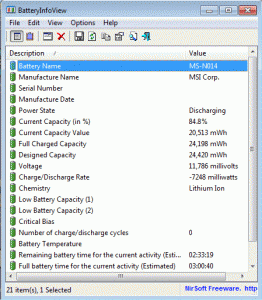
”BatteryInfoView v1.00” A very useful tool for laptop users to know the full Battery information. Though default battery status indicator is available in your laptop, this tool let you know all the informations about the battery, including discharge rate of the battery.
This utility works on any version of Windows, starting from windows 2000 and up to Windows 7.

Columns Description
- Battery Name: The name of your battery.
- Manufacture Name: The name of the company that manufactured the battery.
- Serial Number: The serial number of your battery. This value is displayed only if the battery supports it.
- Manufacture Date: The date that the battery was manufactured. This value is displayed only if the battery supports it.
- Power State: The current power state of the battery: Charging, Discharging, AC Power, or Critical.
- Current Capacity (in %): The current % capacity, which is the same capacity value displayed by Windows.
- Current Capacity Value: The current absolute capacity, which is usually displayed in mWh units (milliwatt-hours).
- Full Charged Capacity: The capacity of the battery, when it’s fully charged. This value is usually displayed in mWh units (milliwatt-hours).
- Designed Capacity: The full capacity of the battery, when it’s completely new.
- Voltage: Current battery voltage across the battery terminals, in millivolts.
- Charge/Discharge Rate: The current charge or discharge rate, usually displayed in milliwatts.
- Chemistry: Battery’s chemistry: Lithium Ion, Nickel Cadmium, Nickel Metal Hydride, and so on.
- Low Battery Capacity: Manufacturers suggestion of a capacity, in mWh, at which a low battery alert should occur.
- Number of charge/discharge cycles: Number of charge/discharge cycles the battery has experienced. This value is displayed only if the battery supports it.
- Remaining battery time for the current activity (Estimated): The remaining battery time according to the current activity. This value is calculated according to the change of the ‘Current Capacity Value’ in the last 30 seconds.
- Full battery time for the current activity (Estimated): The time that the battery can hold when it’s fully charged, according to the current activity. This value is calculated according to the change of the ‘Current Capacity Value’ in the last 30 seconds.
- Remaining time for charging the battery (Estimated): The remaining time for charging the battery. This value is calculated according to the change of the ‘Current Capacity Value’ in the last 30 seconds.
- Total time for charging the battery (Estimated): The total time that you need to wait in order to charge the battery. (Displayed only when the battery is in ‘charging’ status)
This value is calculated according to the change of the ‘Current Capacity Value’ in the last 30 seconds.
dressing sense tips

1) Sweaters
If you think of yourself as "too thin", wear your sweater tucked inside your pants. It adds inches around your waist. But if you think of yourself as "too heavy", don't tuck. Also, another don't for women who self-identify as heavy, don't wear chunky cable knits. Stick with cashmere, fine cotton knits and silk/nylon pieces. It gives you the warmth but not the bulk.Tight sweaters can make you look thinner or bustier than you might like. Don't believe Victoria's Secret. Really tight sweaters on women with extreme bust lines do not belong in the real world.
One Hollywood tip we can pass along regarding turtlenecks is that a lot of "mature" stars (both male and female) use them to hide a neck that they'd rather not call attention to.
The sweater that is a "must have" for every wardrobe is the sweater coat that's thigh-length or longer. They're very trim and very classy. For the rest of our love letter to this classic cut, see "Blazers" below.
2) Shoes/Boots
Fall is the perfect time to match your great leather or "faux" skin shoes with a great bag or belt for a really hot look. If the only thing smaller than your closet is your budget, keep your color choices to the neutrals and your styles basic. Neutrals work with more pieces and basic styles are safer. Trendy or exotic footwear can really trip you up. For instance, trendy "chunky" shoes can wreak havoc with rounder, heavier body profiles and exotic thigh-high boots will devour a woman who is petite.Shoes are very retro now. The '40's and 50's are back with pointy toes and high heels. The pinched look Betty Davis had in movies wasn't all acting, it was the shoes. If "pain" is not your thing, go for toned-down versions with lower heels and more room for your toes.
If you prefer style over substance, please relegate any boot that can best be described as "galoshes" to the "I don't care how I look" category. This tip goes double for those rain boots that you slip on over your shoes.
3) Colors
The colors for fall are lush and rich - golds, browns, burgundies and rusts. Do buy your basics in any of these timeless shades. Wild and crazy colors are supporting players this year. For a happening look, give the world just a splash of color by wearing busy blouses under blazers, jackets and big shirts.If you really want to make your mark, try monotone dressing. Pick a color that works for you and offset it with an eye-catching accessory like a scarf or some jewelry (no more than two matching pieces of jewelry at a time please). Just wear the accessory from the breastbone up so it brings attention to your face.
Yes, you can wear white after Labor Day. That rule was made when white was only used in summer-weight fabrics. Now they're called "Winter Whites" and from cashmere to wool and corduroy to leather, they are all to die for
.
4) Blazers/Shirt Jackets/Sweater Coats.
Okay, so we mention this fall dressing "do" with all the regularity of Chinese water torture. Do buy a good blazer. It's the Swiss knife of dressing. You can mix and match it with tops and bottoms, dress it up or down and you can cover a torso you'd rather not call attention to. Also do try to own at least one "Duster" length blazer, jacket or sweater. It's instantly classy and elongates the profile.If you can only afford one blazer, shirt jacket or sweater coat, make it a more conservative cut and a neutral color. It goes with more things and if you choose a darker color, you won't have to take it to the dry cleaners as often. Whatever color you choose just make sure it's one of the three colors you wear most and you can't go wrong.
We can't talk about fall jackets without mentioning coats. We see overstuffed ski parkas and boxy men's coats everywhere. But these styles are verboten if you think you're already "boxy" to begin with. Belted jackets and coats are also "in". However, if your waist isn't as small as you would like, forget the belt or opt for a more flowing beltless style.
5) Skirts/Pants
The second you slip on a skirt or a pair of pants, you are adding bulk If you're big on the bottom, stick with pants or skirts that are slimming but not tight. This year the very slim, almost legging pant should probably not be in your closet. If you're hippy, they make your rearend look like an overstuffed sofa. If you're thin and your thighs are the same size as your upper arms, they will make you look like a walking wishbone. If you think the wishbone-look is attractive, think again.In the seventies, tucking your pants into your boots was all the rage. Just check Partridge Family re-runs. That look is back. If long legs are not your biggest asset, tucking your pants can literally cut you off at the knees. If your body profile is thick in any area, "tucking" will only make you look lumpier.
"Boot cut" is the word in pants this season. This cut is slightly flared at the bottom so it helps offset your butt if it's not as small as you would like. But no matter what your body type is, keep the angle of the flares slight or you will look like the missing member of Sly and the Family Stone.
Lots of pants are "low cut" now so you can put your belly button on display. Exposing your navel when it's cold outside is totally up to you but this look works best on young girls or women who spend a lot more time at the gym than they do eating.
Skirts are coming in more styles and lengths than ever before. Consider body type and height here. If you're short of stature, skirts can make you appear more so, especially one that stops mid-calf.
Sometimes age is a factor. If you can remember when miniskirts first made their appearance, you are probably too old to wear one. Stick to skirts that are knee length, just above the knee or just below. They work well for almost everyone's shape or age.
Be careful with the shapes of skirts this fall. The pencil skirt is great for hips you don't want to emphasize. The A-line works for slimmer hips, as well as hide heavier thighs. If you have a waist you do not want to emphasize, avoid all around elastic waists. They do no favors for your midsection.
6) Maintenance
Clothes are like kids. If you don't take care of them, they'll fall apart on you at the worst possible time. Clothing manufactured for the fall/winter season should last at least from September to May. If you buy wisely and well, it can last a lifetime. So the challenge is to keep the wear and tear to a minimum.Do hang or fold your clothing neatly when not in use. Repeated dry cleaning or ironing to get the wrinkles out will shorten the life of your garment.
Do follow the garment's "care" label to avoid the heartbreak of shrinking, shredding or fading. If perspiration is a problem, invest in underarm dress shields or pads. They can be either washable or disposable and can protect against both odor and stains. If you have leather pieces, there are tons of products to protect, clean and waterproof them.
Do mothproof your closet. We don't believe in cruelty to animals. But if moths treat your velvets like an all-you-can-eat buffet, you must declare war. A tailor can render some moth holes invisible but a pre-emptive strike is recommended.
7) Hats
Hats are very personal. There are no strict rules on what shape works for you. However, if you are a larger lady, try to find larger brimmed hats to keep your proportions in perspective. If you are petite, a close-fitting cloche will look great. Berets work for almost everyone. But like jeans, you have to keep trying them on until you find the one that makes you say, "Hot stuff comin' through!".No matter what you buy this fall remember our golden rule. "Don't just buy what's 'in'. Always buy what's right for you." The wrong choice can leave you standing out in the cold.
Subscribe to:
Posts (Atom)


